
Ctrl+D 收藏本站 再次访问不迷路 ~
前言
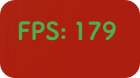
在现代网站开发中,FPS(每秒传输帧数)显示功能是衡量页面交互流畅度与渲染性能的重要指标,尤其对包含动画效果、滚动交互、3D 元素或复杂 UI 的网站而言,具有不可替代的实用价值。
FPS 数值直观反映了浏览器每秒钟渲染页面的次数,理想状态下 60FPS 意味着页面动画流畅自然,用户操作无卡顿感;而当数值低于 30FPS 时,往往伴随明显的延迟或掉帧,直接影响使用体验。在网站中集成 FPS 显示功能后,数值通常以小巧的数字面板形式悬浮于页面角落(如左上角或右上角),既不干扰核心内容浏览,又能实时反馈当前性能状态。
教程
复制下面代码
<!-- 引入FPS计数器 -->
<script>
document.addEventListener('DOMContentLoaded', function() {
    const fpsCounter = document.createElement('div');
    fpsCounter.style.position = 'fixed';
    fpsCounter.style.top = '10px';
    fpsCounter.style.left = '10px';
    fpsCounter.style.backgroundColor = 'transparent';
    fpsCounter.style.color = 'white';
    fpsCounter.style.padding = '3px 8px';
    fpsCounter.style.borderRadius = '3px';
    fpsCounter.style.fontFamily = 'Arial, sans-serif';
    fpsCounter.style.fontSize = '16px';
    fpsCounter.style.zIndex = '9999';
    fpsCounter.textContent = 'FPS: 0';
    document.body.appendChild(fpsCounter);
    let frameCount = 0;
    let lastTime = performance.now();
    let fps = 0;
    function updateFPS() {
        const currentTime = performance.now();
        frameCount++;
        if (currentTime - lastTime >= 1000) {
            fps = Math.round(frameCount * 1000 / (currentTime - lastTime));
            fpsCounter.textContent = `FPS: ${fps}`;
            if (fps >= 50) {
                fpsCounter.style.color = '#4CAF50';
            } else if (fps >= 30) {
                fpsCounter.style.color = '#FFC107';
            } else {
                fpsCounter.style.color = '#F44336';
            }
            frameCount = 0;
            lastTime = currentTime;
        }
        requestAnimationFrame(updateFPS);
    }
    updateFPS();
});
</script>
然后根据自己的typecho后台在合适的位置添加,一般都在头部的head里嵌入。当然底部也可以自行添加
©版权声明
文章版权归轩落阁所有,未经允许请勿转载。
THE END











暂无评论内容